

Receiving Your Credentials
Before making your first login, you need to receive your access credentials:- Credentials sent by email: A system administrator created your account and you received an email with your access credentials.
- Credentials provided directly: An administrator provided your credentials personally or through a secure channel.
- Email: Your email address registered in the system.
- Temporary password: An initial password that you will need to change on first access.
Accessing the Platform
To make your first login:- Open your preferred web browser (Chrome, Firefox, Safari, Edge).
- Navigate to the Evo CRM platform URL provided by the administrator.
- You will be directed to the login page.
Login Page
The login page features a modern interface with a dark theme and the following elements: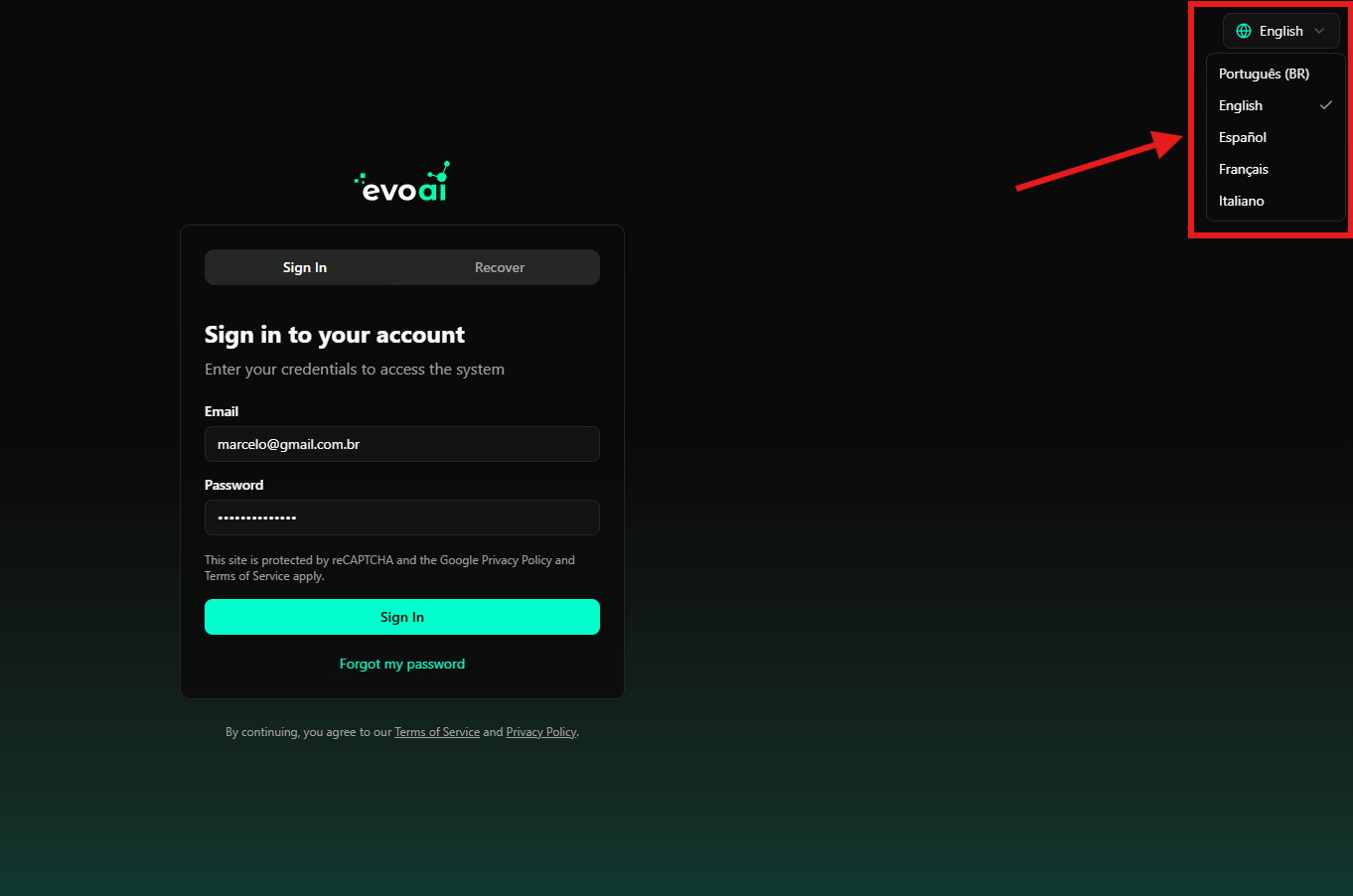
Page Header
- evoai logo: Displayed in the upper left corner of the page, showing the platform logo with characteristic green graphic elements.
- Language Selector: Located in the upper right corner, allows switching between available languages:
- Portuguese (BR)
- English
- Español
- Français
- Italiano
Navigation Tabs
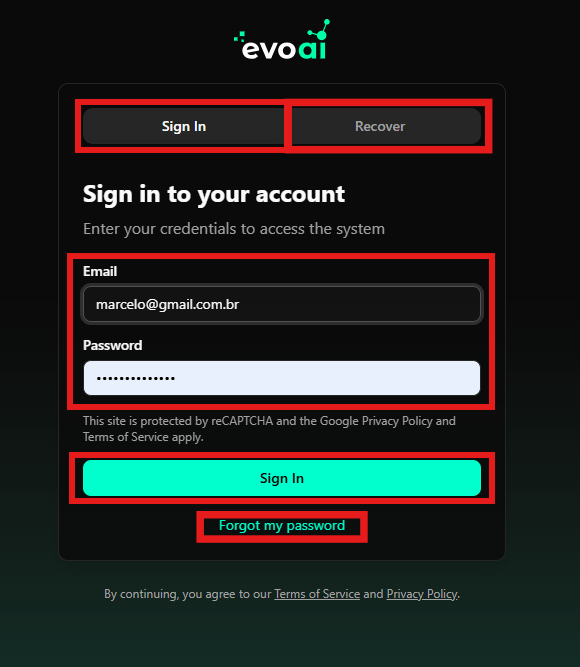
At the top of the central login panel, you will find two tabs:- Sign In: Active tab for logging in (default).
- Recover: Tab for password recovery.
Login Panel
The central login panel contains the following elements:Title and Instructions
- Title: “Sign in to your account”
- Instructions: “Enter your credentials to access the system”
Input Fields
-
Email Field:
- Label: “Email”
- Enter the email address associated with your account
- The field accepts valid email addresses
-
Password Field:
- Label: “Password”
- Enter your password (initially the temporary password provided)
- Characters are masked for security
Security Notice
Below the input fields, there is a notice stating:- “This site is protected by reCAPTCHA and the Google Privacy Policy and Terms of Service apply.”
- The “Privacy Policy” and “Terms of Service” links are clickable.
Buttons and Actions
-
“Sign In” Button:
- Main button with vibrant green/teal background and white text.
- Click this button to log in after filling in your credentials.
-
“Forgot my password” Link:
- Link located below the “Sign In” button.
- Click here if you forgot your password and want to recover it.
- Alternatively, you can use the “Recover” tab at the top of the panel.
Error Messages
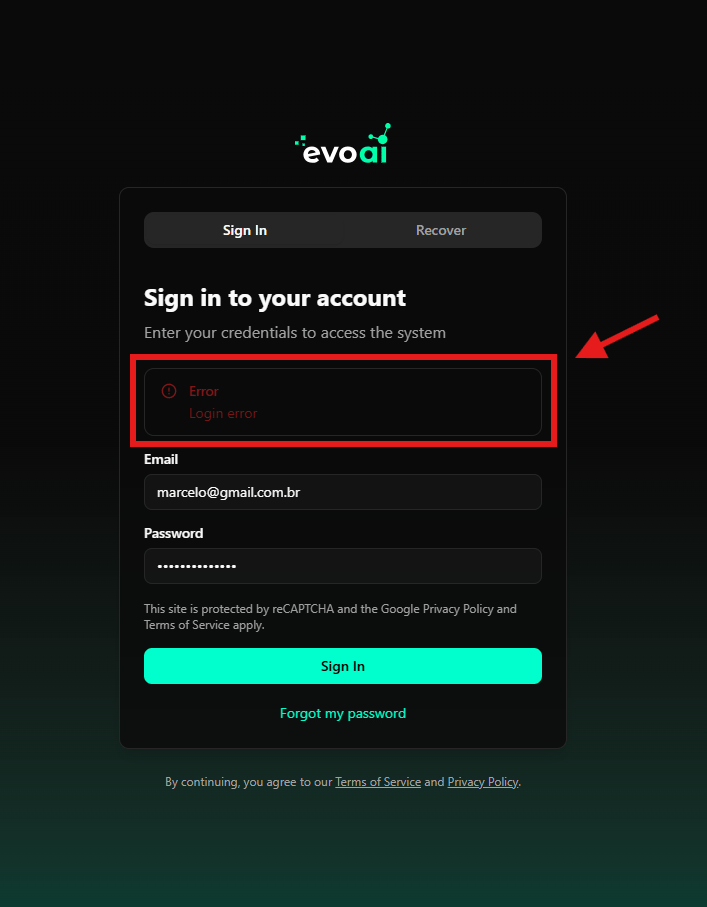
If credentials are incorrect, an error message will be displayed:- Error icon: A circle with an exclamation point in red.
- Text: “Error” followed by “Login error”.
- The message appears in a box with a red border below the instructions.
Footer
At the bottom of the page, outside the login panel, there is a legal notice:- “By continuing, you agree to our Terms of Service and Privacy Policy.”
- The “Terms of Service” and “Privacy Policy” links are clickable.
Logging In
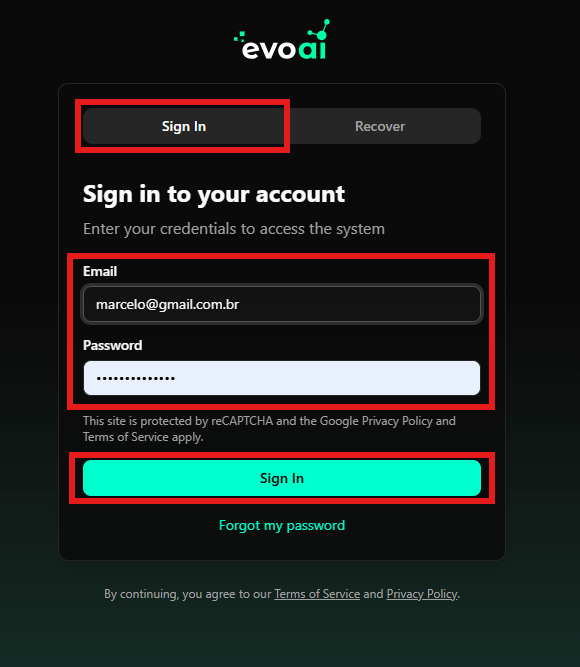
To log in to the platform:- Select language (optional): If desired, click the language selector in the upper right corner and choose your preferred language
-
Enter your email: In the “Email” field, enter the email address associated with your account
- Make sure to enter the complete and correct email.
- Check that there are no extra spaces before or after the email.
-
Enter your password: In the “Password” field, enter your temporary password or current password
- Characters will be masked for security.
- Make sure the Caps Lock key is not activated.
- Verify the data: Confirm that the email and password are correct before proceeding.
- Click “Sign In”: Click the green “Sign In” button to access the platform.
- Wait for authentication: The system will validate your credentials and you will be redirected.
Password Recovery
If you forgot your password, you can recover it in two ways:Method 1: Using the “Recover” Tab
- Click the “Recover” tab: At the top of the login panel, click the “Recover” tab
-
View the recovery screen: The screen will display:
- Title: “Recover password”
- Instructions: “Enter your email to receive recovery instructions”
- Enter your email: In the “Email” field, enter the email address associated with your account
- Click “Send instructions”: Click the “Send instructions” button to receive recovery instructions by email
- Check your email: Access your inbox and follow the instructions received
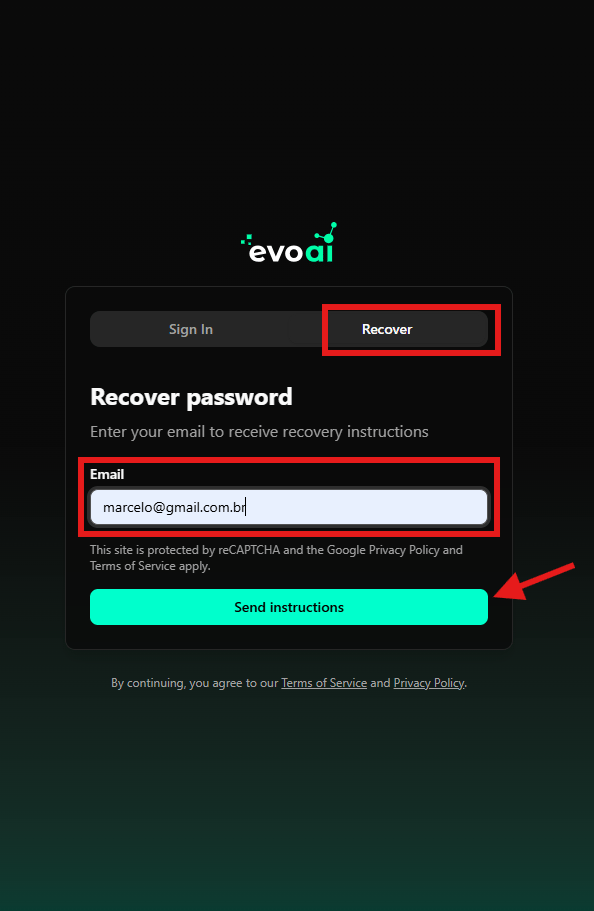
Method 2: Using the “Forgot my password” Link
- Click “Forgot my password”: In the “Sign In” tab, click the “Forgot my password” link below the “Sign In” button
- Follow the steps above: The process is the same as described in Method 1
Password recovery instructions will be sent to the email registered in your account. Make sure you have access to this email before requesting recovery.
First Access - Password Change
The first time you log in with a temporary password, the system may request that you change your password:Password Change Process
- Automatic request: After successful login, a password change screen may appear automatically
-
Fill in the fields:
- Current Password: Enter the temporary password provided.
- New Password: Create a strong password following the system requirements.
- Confirm New Password: Enter the new password again for confirmation.
-
Password requirements: Make sure your new password meets the minimum requirements:
- Minimum of 8 characters (or according to organization policy)
- At least one uppercase letter.
- At least one lowercase letter.
- At least one number.
- At least one special character (if required).
- Save the change: Click the “Update Password” or “Save” button to confirm the change
Common Login Problems
Invalid Credentials
If you receive an “Login error” message indicating that credentials are incorrect:- Check the email: Confirm that you are using the correct email (check for typos)
- Check the password: Make sure the password is correct and there are no extra spaces
- Check Caps Lock: Confirm that the Caps Lock key is not activated
- Check email format: Make sure the email is complete and in the correct format
- Try again: After checking, try logging in again
Locked Account
If your account is locked after multiple login attempts:- Wait a few minutes: The system may temporarily lock after multiple failed attempts
- Use password recovery: Click the “Recover” tab or the “Forgot my password” link to reset your password
- Contact the administrator: If the problem persists, contact the system administrator
Email Not Found
If you receive a message indicating that the email was not found:- Check the email: Confirm that you are using the correct email that was registered
- Check for typos: Make sure there are no typos in the email
- Contact the administrator: If you are sure the email is correct, contact the administrator to verify that your account was created correctly
reCAPTCHA Issues
If you encounter problems related to reCAPTCHA:- Check your connection: Make sure your internet connection is stable
- Try refreshing the page: Reload the page and try again
- Disable ad blockers: Some blockers may interfere with reCAPTCHA
- Try another browser: If the problem persists, try using another browser
After Successful Login
After successfully logging in, you will be redirected to:- Main dashboard: The initial platform screen with an overview of your activities
- Onboarding screen: If this is your first access, you may be directed to an onboarding process that will guide you through the main features
- Last visited page: The system may redirect you to the last page you were viewing before logging out
Next Steps
After successfully making your first login:- Dashboard Overview - Explore the main dashboard and its features
- Onboarding Process - Learn about the platform’s main features
- Account Settings - Configure your personal and account preferences
Security and Best Practices
Keeping Your Account Secure
- Use strong passwords: Create unique and complex passwords that meet system requirements
- Don’t share credentials: Never share your email and password with others
- Use two-factor authentication: If available, enable two-factor authentication for greater security
- Log out: Always log out when you finish using the platform, especially on shared computers
- Keep your browser updated: Use updated versions of your browser for greater security
- Verify reCAPTCHA: The system uses reCAPTCHA to protect against unauthorized access
On Shared Devices
- Always log out: Make sure to log out when you finish your session
- Clear cache: Consider clearing browser cache and cookies after using the platform on shared devices
- Don’t save credentials: Avoid saving your credentials in the browser on shared devices
Support
If you encounter problems during the login process:- Check this guide: Review the common problems sections above
- Use password recovery: If you forgot your password, use the “Recover” tab or the “Forgot my password” link available on the login page
- Contact the administrator: If the problem persists, contact the system administrator or technical support
- Check the documentation: Consult other guides available in the platform documentation