

Accessing the Chat Interface
To open the chat interface:- In the conversation list, click on the desired conversation
- The chat interface will open in the right or center panel, depending on the layout
Chat Interface Structure
The chat interface occupies the central and right area of the screen, displaying details of the conversation selected from the sidebar list.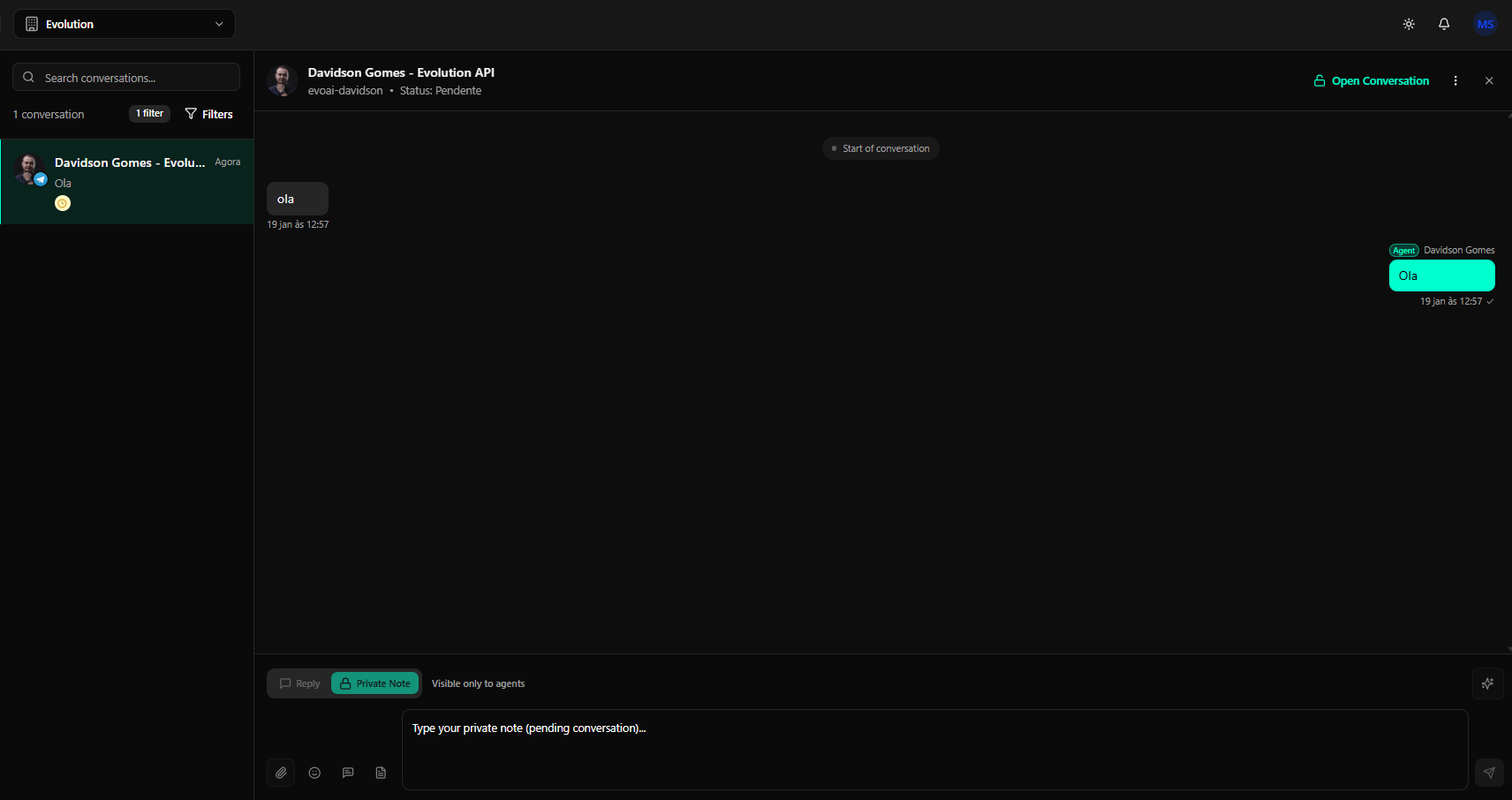
Top Navigation Bar
At the top of the screen, there is a navigation bar with:- Context Selector: In the upper left corner, a selector displaying “Evolution” with building icon and a downward arrow, indicating the current context or environment
- Control Icons: In the upper right corner:
- Sun/moon icon to toggle theme (light/dark)
- Bell icon for notifications
- User avatar (e.g., “MS”)
Conversation List (Left Column)
The left column displays all available conversations:Search Bar
- Search Field: At the top of the column, a field with placeholder “Search conversations…” and magnifying glass icon
- Functionality: Allows searching conversations by contact name or keywords
Counter and Filters
Below the search bar:- Conversation Counter: Displays the total number of conversations found (e.g., “1 conversation”)
- Filter Indicator: Shows how many filters are active (e.g., “1 filter”)
- Filters Button: With funnel icon, allows opening the filter configuration modal
Selected Conversation
The currently selected conversation is highlighted in a dark green block:- Avatar: Contact profile photo (e.g., “Davidson Gomes”)
- Channel Icon: Small icon overlaid on the avatar indicating the channel (e.g., blue paper airplane icon for Telegram)
- Name and Time: Contact name followed by “Evolu…” and time indication (e.g., “Now”)
- Message Preview: Last message exchanged in the conversation (e.g., “Ola”)
- Status Indicator: Small yellow clock icon, suggesting specific conversation status or business hours
Active Chat Interface (Main Column on the Right)
The main column on the right shows the selected conversation:Conversation Header
- Contact Information:
- Customer name and channel (e.g., “Davidson Gomes - Evolution API”)
- Internal identifier (e.g., “evoai-davidson”)
- Conversation status (e.g., “Status: Pending”)
- Action Buttons: In the upper right corner:
- “Open Conversation” button (green with open lock icon)
- Three vertical dots icon (options menu)
- “X” icon (close conversation)
Message History
The central area displays the chronological flow of messages:- Start Marker: A centered horizontal line with the text “Start of conversation”
- Received Message:
- Black/gray chat bubble on the left
- Message text (e.g., “ola”)
- Timestamp below (e.g., “19 Jan at 12:57”)
- Sent Message:
- Teal chat bubble on the right
- Agent identification above (e.g., “Agent Davidson Gomes”)
- Message text inside the bubble (e.g., “Ola”)
- Timestamp with checkmark (e.g., “19 Jan at 12:57 ✓”) indicating the message was sent/read
Message Composition Area (Bottom)
At the bottom of the interface:- Mode Tabs:
- Reply: Deactivated tab (light gray) for public replies to the customer
- Private Note: Activated tab (green) with lock icon for internal notes
- Informative text: “Visible only to agents” next to the Private Note tab
- Text Field: Large rectangular text box with dynamic placeholder based on the selected tab
- Action Icons (Bottom Left):
- Paper clip (attach files)
- Smiling face (emojis)
- ”@” (mentions)
- Document/star (quick response templates)
- Send and Tools Buttons (Bottom Right):
- Microphone (audio recording)
- Star/shining diamond (AI Assistance)
- Paper airplane (send message)
Message Composition Area
The composition area allows agents to respond and add internal notes. This section is fundamental for customer interaction.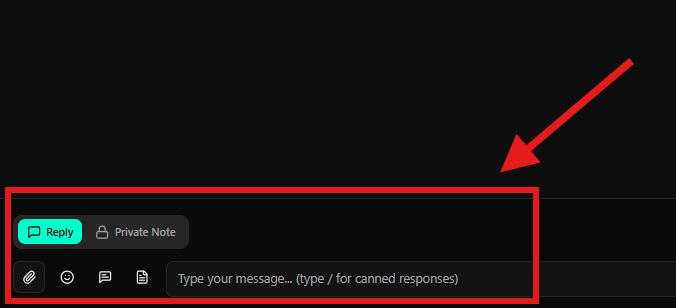
Composition Mode Tabs
At the top of the composition area, there are two tabs that determine the message type:Reply
- Function: Send public messages that will be visible to the customer
- When to use: To respond directly to the customer
- Style: Tab highlighted in green when active
- Placeholder: “Type your message… (type / for canned responses)“
Private Note
- Function: Add internal notes visible only to other agents
- When to use: For internal discussions about the conversation, pass on information, or request help
- Visibility: Only visible to agents and platform collaborators
- Style: Tab highlighted in green with lock icon when active
- Placeholder: “Type your private note (pending conversation)…”
- Informative text: “Visible only to agents” next to the tab
Text Field
The main area for typing messages:- Size: Large rectangular text box
- Dynamic placeholder:
- “Type your message… (type / for canned responses)” when the Reply tab is active
- “Type your private note (pending conversation)…” when the Private Note tab is active
- Shortcut: Type ”/” to access canned responses
Action and Formatting Icons
In the lower left corner of the text field, there are several icons:-
Attachment (Paper Clip):
- Allows attaching files, images, or documents
- Click to select files from your device
-
Emojis (Smiley Face):
- Opens the emoji selector
- Adds expressiveness to messages
-
Mentions (@):
- Allows mentioning other agents in private notes
- Useful for calling attention from specific team members
-
Quick Response Templates (Document/Star):
- Accesses canned responses or message templates
- Type ”/” in the text field for quick shortcut
Send and Additional Tools Buttons
In the lower right corner of the composition area:-
Microphone:
- Possible voice input (if available)
- Allows recording audio messages
-
AI Assistance (Star/Diamond):
- Shining diamond or stylized star icon
- Opens the artificial intelligence assistance modal
- See the “AI Assistance” section below for more details
-
Send (Paper Airplane):
- Sends the typed message
- Can also be triggered by pressing Enter
”Open Conversation” Action
The Open Conversation button is crucial for the platform’s workflow.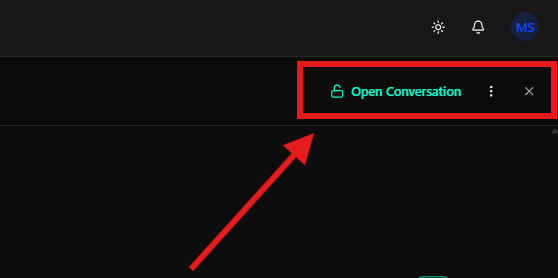
Conversation Information
In the header, you can view:- Contact Name and Channel: “Davidson Gomes - Evolution API” (customer name and communication channel)
- Internal Identifier: “evoai-davidson” (unique conversation identifier)
- Conversation Status: “Status: Pending” (current conversation state)
“Open Conversation” Button
The button is located in the upper right corner of the header:- Appearance: Green button with text “Open Conversation” and open lock icon
- Function: Changes the conversation status from “Pending” to “Open”
- When to use: When you’re ready to start active support
- Important: This button is crucial for the workflow, signaling that an agent is actively engaged in resolution
Other Buttons in the Header
To the right of the “Open Conversation” button, you find:- Options Menu: Three vertical dots icon for additional conversation-related options
- Close Conversation: “X” icon to close the conversation view
When to Use
- When a conversation is in “Pending” status
- When you’re ready to start active support
- To signal that an agent is engaged in resolution
How It Works
- Click the Open Conversation button in the conversation header
- The conversation status changes from “Pending” to “Open”
- This indicates that support has been initiated and an agent is actively working on the conversation
Importance
- Organization: Helps track which conversations are being handled
- Collaboration: Prevents multiple agents from working on the same conversation simultaneously
- Metrics: Contributes to reports and performance analysis
Private Notes
The Private Note functionality allows the team to communicate internally within the context of a specific conversation.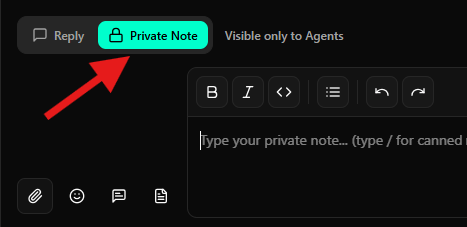
Characteristics
- Visibility: Only visible to other agents and collaborators
- Customer doesn’t see: Private notes do not appear to the customer
- Context: Maintains the context of the specific conversation
When to Use
- Internal discussions: To discuss support strategies
- Information handoff: To leave important information for other agents
- Request help: To ask for assistance from other team members
- Notes: To record important observations about the customer or situation
How to Use
- Click the Private Note tab in the composition area
- Type your note in the text field
- Optionally, use ”@” to mention other agents
- Click the send button or press Enter
AI Assistance
Evo CRM offers integrated artificial intelligence tools to optimize customer interactions.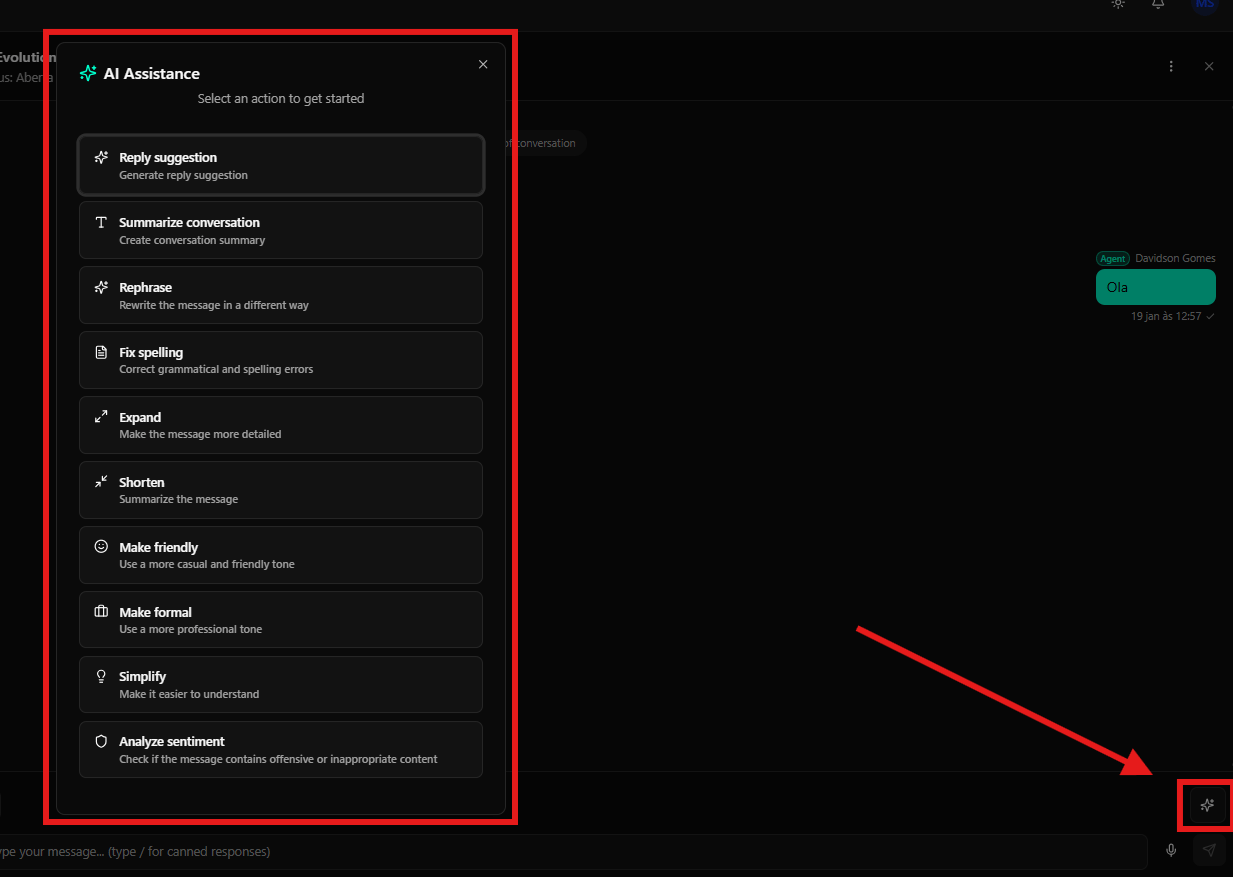
Accessing AI Assistance
To open the AI Assistance modal:- In the message composition area, locate the AI Assistance icon (shining diamond or star)
- Click the icon
- The AI Assistance modal will be displayed on the left side of the interface
Modal Structure
The modal presents:- Title: “AI Assistance” with green shining diamond icon next to it
- Subtitle: “Select an action to get started”
- Close Button: “X” icon in the upper right corner
Available Actions
The modal presents a series of clickable cards, each representing an AI functionality:Reply suggestion
- Icon: Shining diamond
- Description: “Generate reply suggestion”
- Usage: Generates reply suggestions based on conversation context
Summarize conversation
- Icon: Letter ‘T’
- Description: “Create conversation summary”
- Usage: Creates an automatic summary of the entire conversation
Rephrase
- Icon: Shining diamond with double arrows
- Description: “Rewrite the message in a different way”
- Usage: Rewrites a message maintaining the meaning but changing the form
Fix spelling
- Icon: Document with checkmark
- Description: “Correct grammatical and spelling errors”
- Usage: Automatically corrects grammar and spelling errors
Expand
- Icon: Opposing arrows expanding
- Description: “Make the message more detailed”
- Usage: Expands a short message into a more detailed version
Shorten
- Icon: Opposing arrows contracting
- Description: “Summarize the message”
- Usage: Reduces a long message into a more concise version
Make friendly
- Icon: Smiling face
- Description: “Use a more casual and friendly tone”
- Usage: Adapts the message tone to be more casual and friendly
Make formal
- Icon: Graduation cap/tie
- Description: “Use a more professional tone”
- Usage: Adapts the message tone to be more formal and professional
Simplify
- Icon: Light bulb
- Description: “Make it easier to understand”
- Usage: Simplifies the message language to facilitate understanding
Analyze sentiment
- Icon: Shield or protective ring
- Description: “Check if the message contains offensive or inappropriate content”
- Usage: Analyzes sentiment and detects potentially problematic content
How to Use AI Actions
- Type or select the message you want to process
- Click the AI Assistance icon
- Select the desired action in the modal
- The AI will process the message according to the selected action
- Review the result and use as needed
Final Considerations
- The chat interface is designed for efficient and contextualized interaction
- Conversation status can be easily managed through the header using the “Open Conversation” button
- The distinction between Reply and Private Note is fundamental for effective customer communication and internal team collaboration
- Contact information and unique identifier help maintain conversation context
- Messages are synchronized in real-time between all agents
- You can see when other agents are typing
- The complete conversation history is permanently maintained
- AI tools help optimize response quality and efficiency
- Some functionalities may vary depending on the communication channel
- Use private notes to keep internal communication organized and contextualized
What’s New in v1.0.0-rc3
- Contact phone visible in list and header. Previously you needed to open the contact detail to see the number. Now the number appears both in each conversation card in the list and in the chat header (EVO-988).
- Active WebSocket reconnect. When the connection drops (unstable network, server restart), the frontend tries to reconnect in background with exponential backoff. Upon recovery, shows a success toast. Previously the dropped connection was silent and a page refresh was required (EVO-1085).
- Large file uploads. Limit raised to 100MB. Large files skip the fetch+blob flow and use direct upload (EVO-1131).
- Scroll preserved on pagination. When paginating history, scroll stays fixed at the position you were at — no more jumping to the top (EVO-1106).