

Starting a New Email Channel
To start creating an Email channel, use the highlighted action on the Channels screen.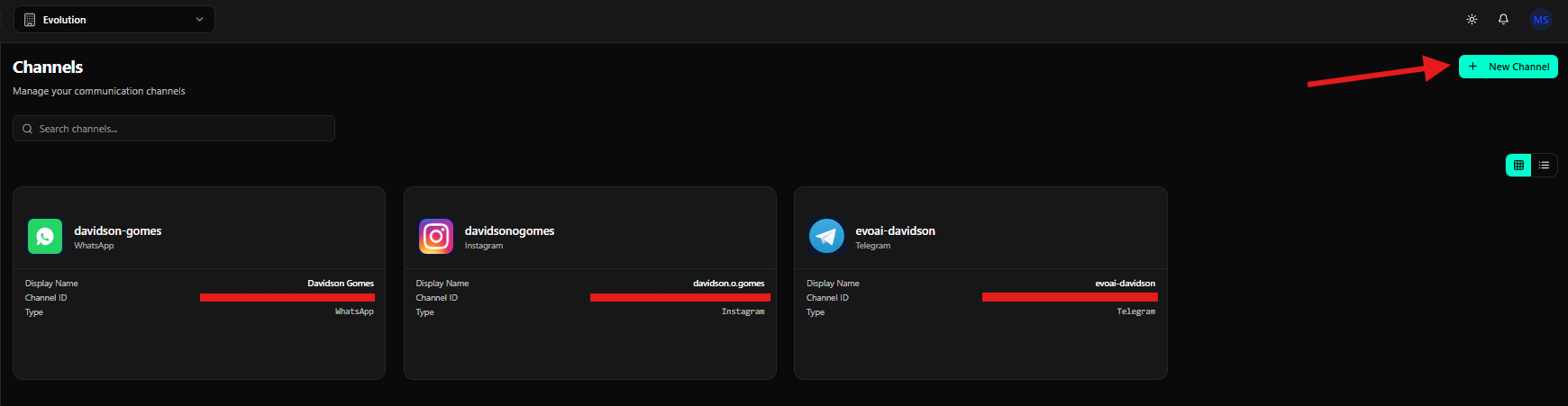
Selecting Email
After clicking New Channel, the system opens the channel type selector.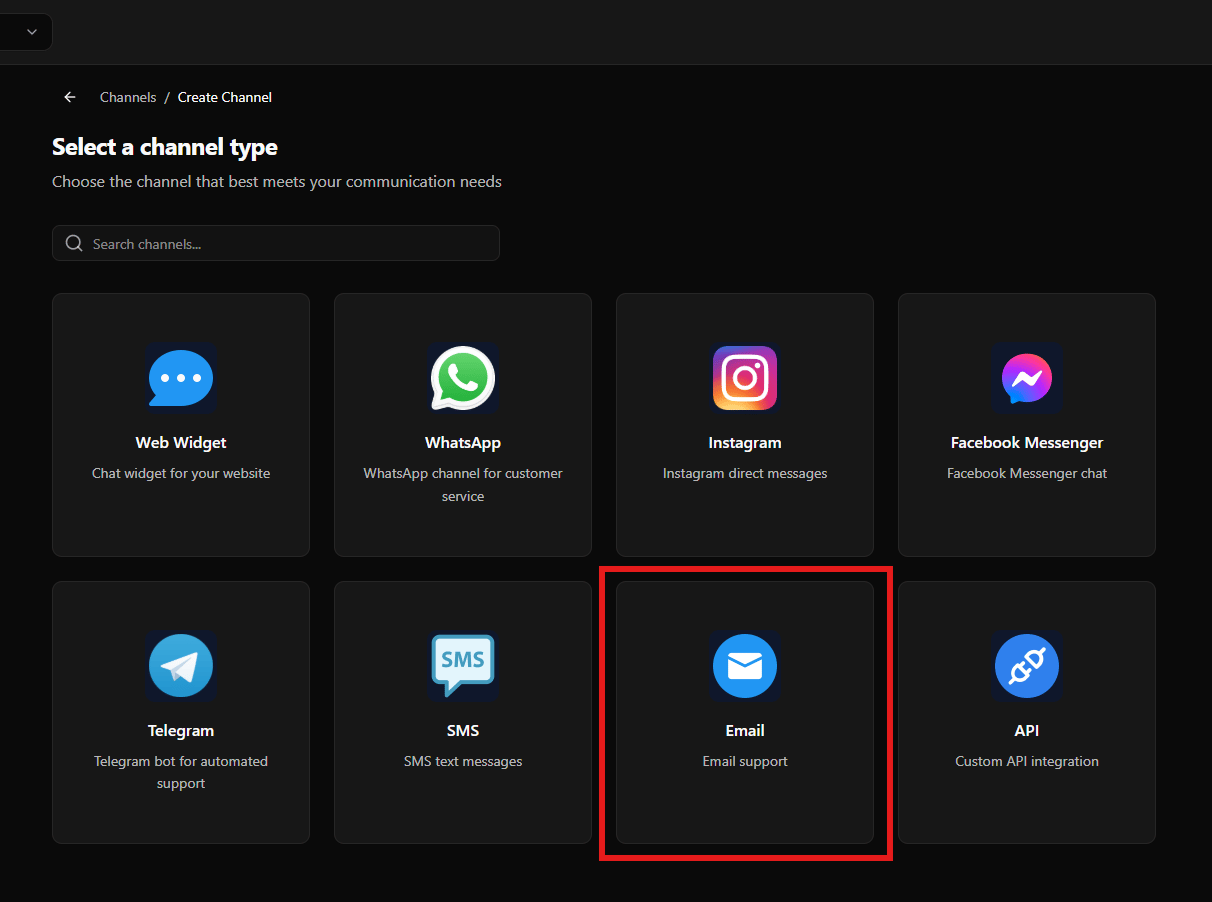
Choosing the Email Provider
After selecting Email, the system shows the available providers.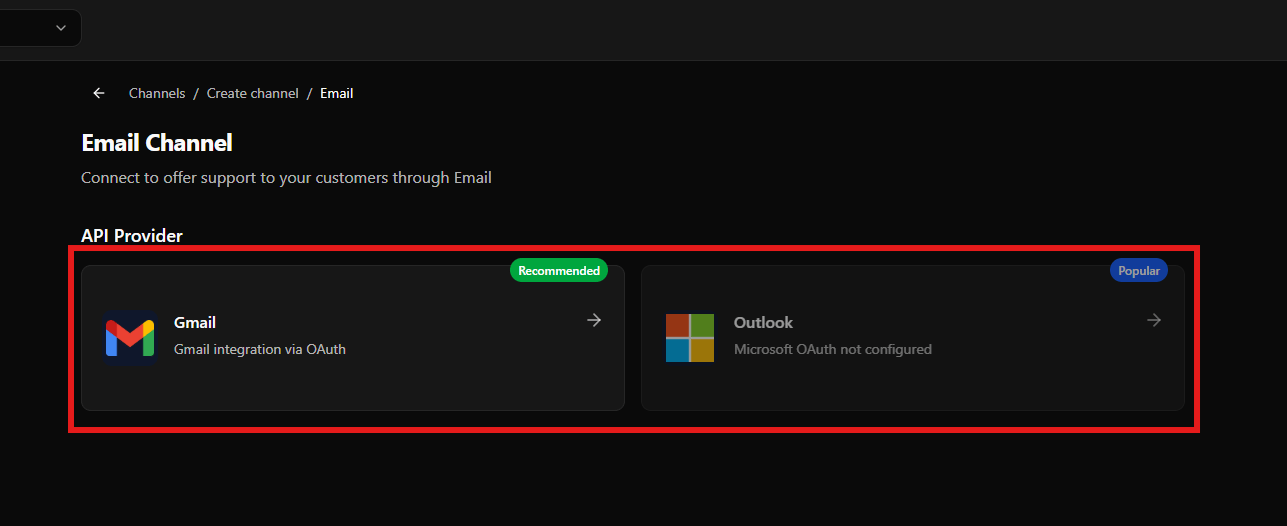
-
Gmail (Recommended)
Text displayed: “Gmail integration via OAuth” -
Outlook (Popular)
Text displayed: “Microsoft OAuth not configured”
Connecting Gmail (OAuth)
Click Gmail to open the configuration screen.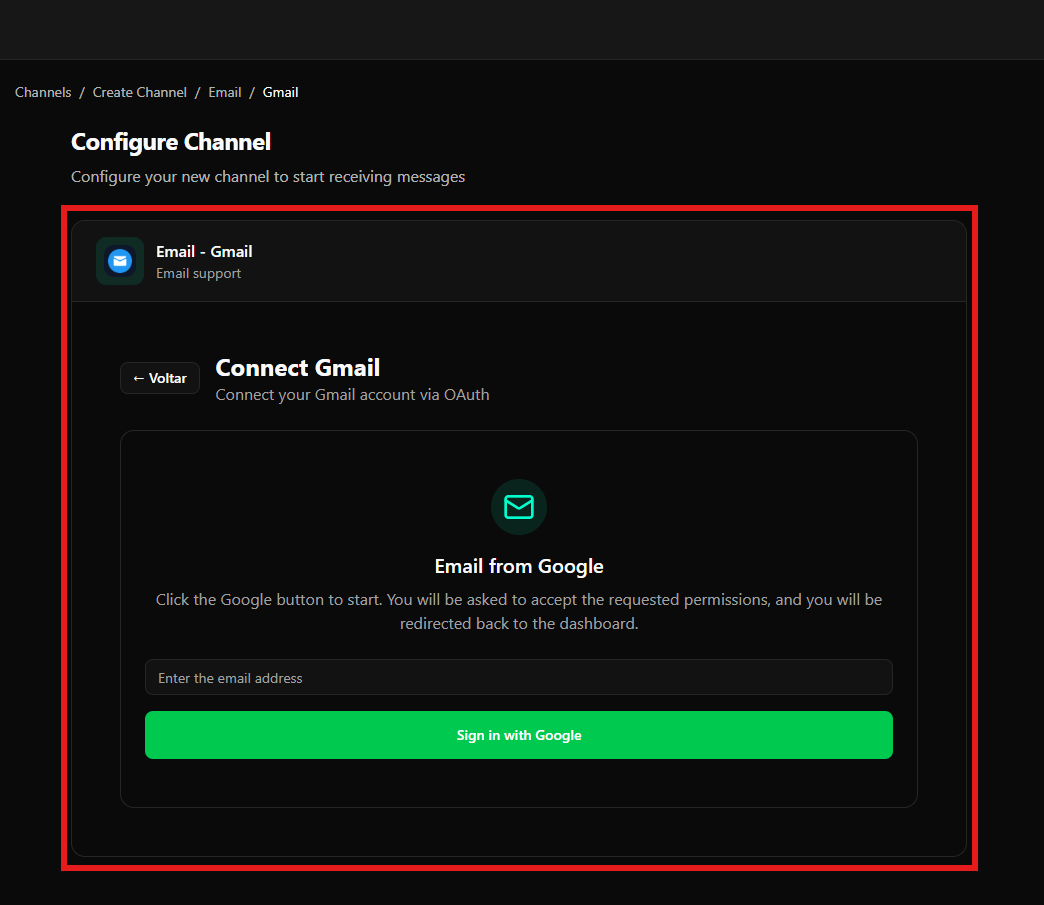
- Connect Gmail
- Subtitle: “Connect your Gmail account via OAuth”
- A card titled “Email from Google” with instruction text:
- “Click the Google button to start. You will be asked to accept the requested permissions and will be redirected back to the dashboard.”
- Field: “Enter the email address”
- Button: “Sign in with Google”
Google Security Warning
After clicking Sign in with Google, you will be redirected to a Google authentication screen. If the application has not yet been verified by Google, you will see a security warning.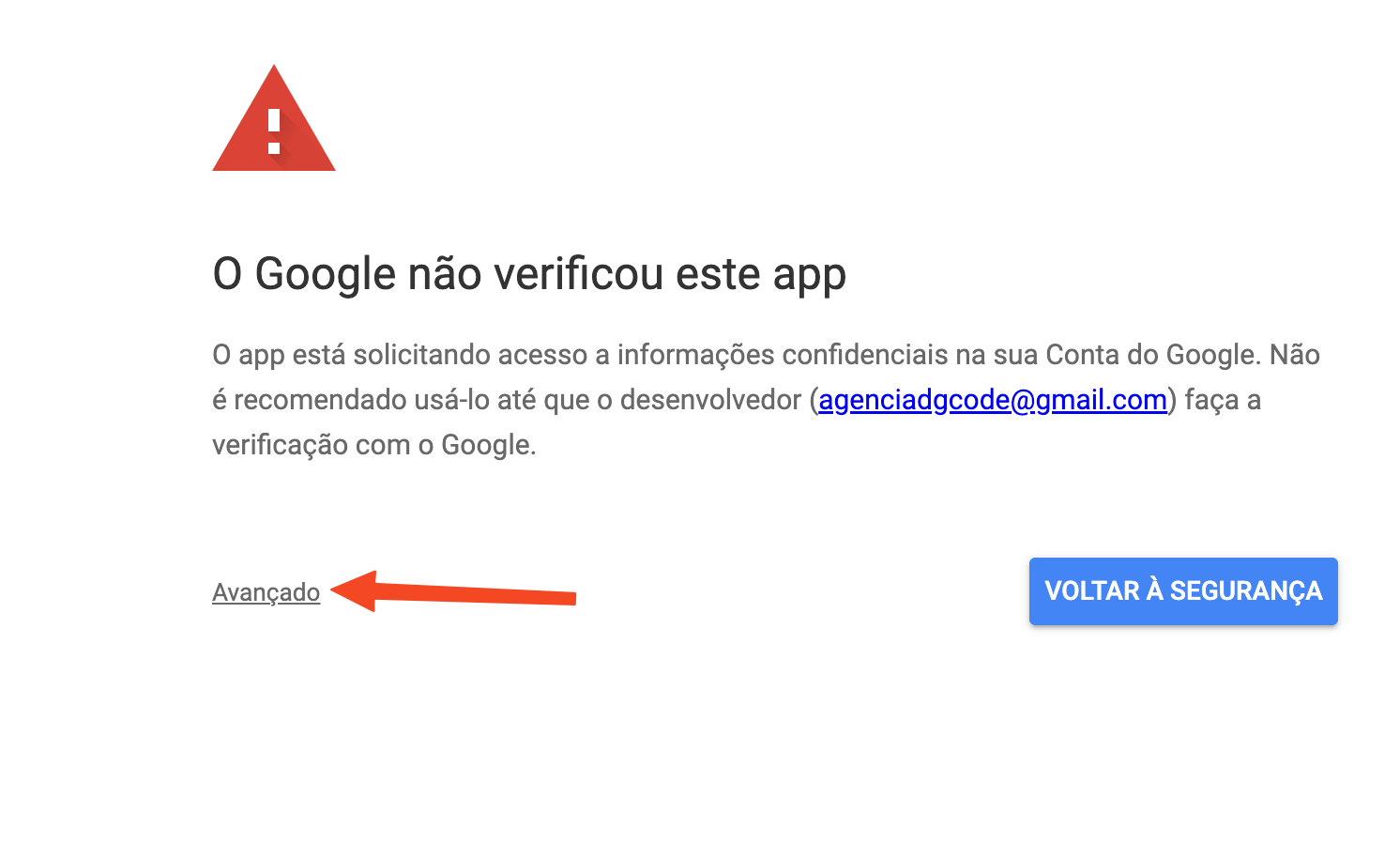
- Warning icon: A red triangle with an exclamation point at the top
- Title: “Google hasn’t verified this app”
- Explanatory message: Informs that the app is requesting access to sensitive information in your Google Account and that it’s not recommended to use it until the developer verifies it with Google
- “Advanced” link: Located in the lower left corner (highlighted with red arrow)
Accessing the Unverified Application
After clicking Advanced, a new screen will be displayed with more options.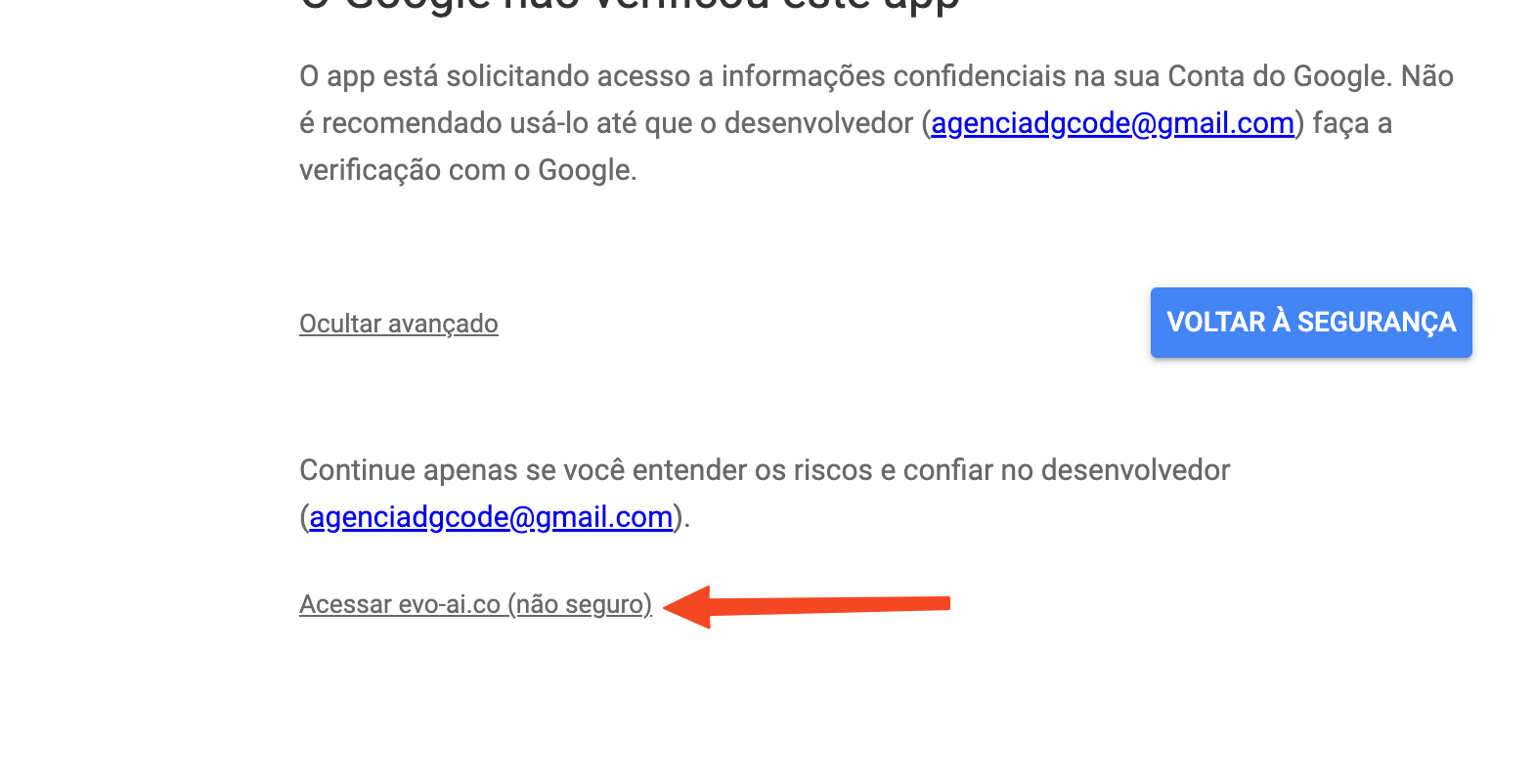
- Warning message: “Google hasn’t verified this app”
- Additional explanation: Informs that the app is requesting access to sensitive information and shows the developer’s email ([email protected])
- “Hide advanced” link: Allows returning to the previous screen
- “GO BACK TO SAFETY” button: Cancels the authorization process
- Warning text: “Continue only if you understand the risks and trust the developer”
- Main link: “Access evo-ai.co (unsafe)” (highlighted with red arrow)
The “unsafe” warning refers to the fact that the application has not yet been verified by Google, it doesn’t mean there’s a real security issue. If you trust the evo-ai.co service, you can proceed safely.
Granting Permissions to the Application
After clicking “Access evo-ai.co (unsafe)”, you will be directed to the Google consent screen.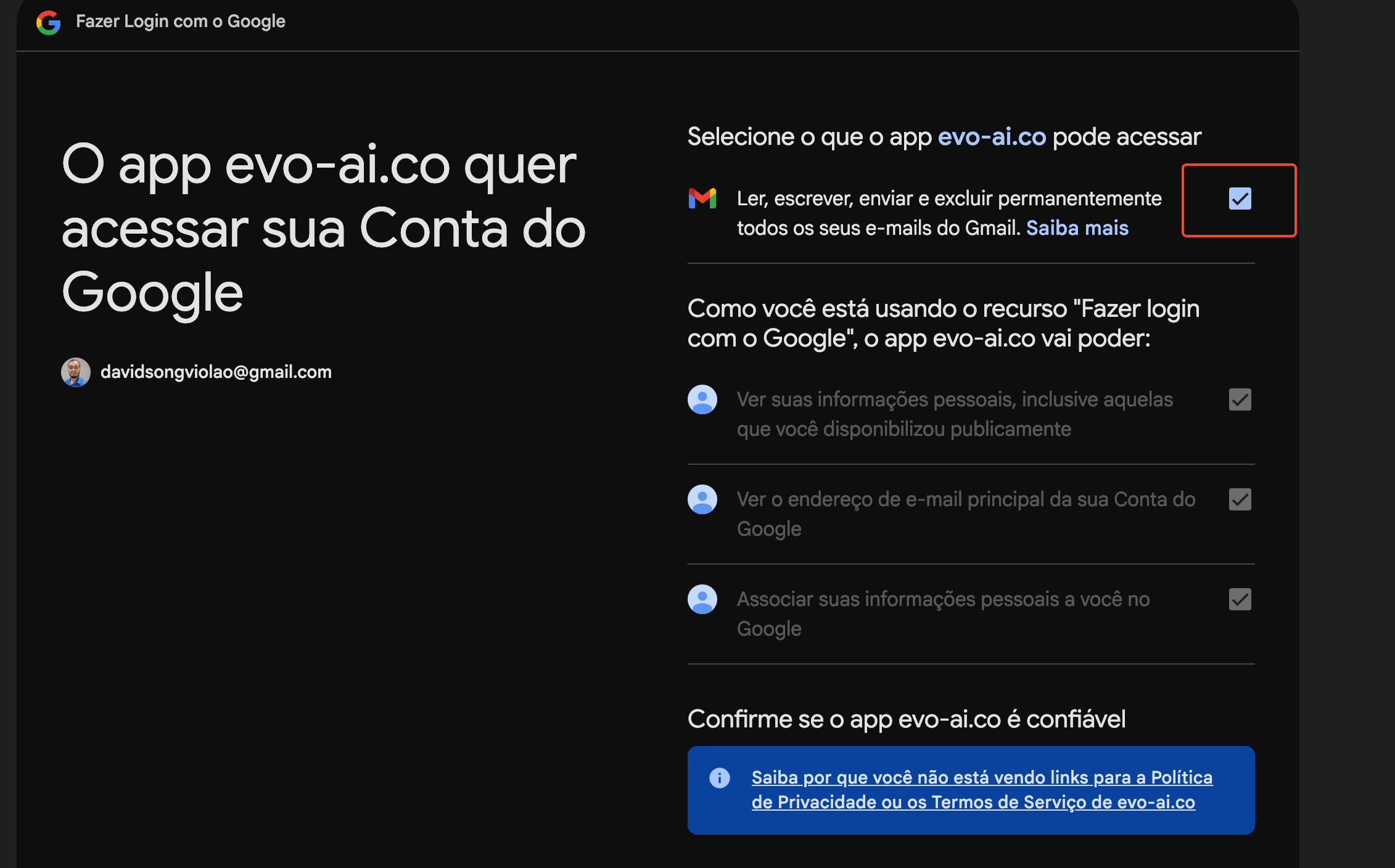
Application Information
- Title: “The app evo-ai.co wants to access your Google Account”
- Account: Shows the email address of your Google account that will be used (example: [email protected])
Requested Permissions
In the “Select what the app evo-ai.co can access” section, you will see the following permissions:Main Email Permission
- Gmail Permission: “Read, write, send, and permanently delete all your Gmail emails”
- Status: This permission will be checked (with blue check and orange outline)
- Important: This is the essential permission for Evo CRM to manage your emails
Other Granted Permissions
Since you’re using the “Sign in with Google” feature, the app will also have access to:- View your personal information, including what you’ve made publicly available
- View the primary email address of your Google Account
- Associate your personal information with you on Google
Additional Information
At the bottom of the screen, there’s a blue information bar explaining why you’re not seeing links to evo-ai.co’s Privacy Policy or Terms of Service.Finalizing Authorization
After reviewing the requested permissions, you can:- Verify that the Gmail permission is checked (required for functionality)
- Click Continue or the authorization button to grant permissions
The requested permissions are necessary for Evo CRM to manage your Gmail emails. You can revoke these permissions at any time in your Google account settings.
Final Considerations
- The Email configuration screen currently offers Gmail (OAuth) as the available option
- The Outlook option appears as “Microsoft OAuth not configured”, so it can only be used when this integration is enabled in the system
- The Google authorization process may display security warnings if the application has not yet been verified by Google
- It is safe to proceed with authorization if you trust the evo-ai.co service
- The requested permissions are necessary for Evo CRM to manage your Gmail emails
- You can revoke permissions at any time in your Google account settings
- After successful authorization, you will be automatically redirected back to the Evo CRM dashboard
- The email channel will be available to receive and manage messages once the connection is established