Accessing a Contact Profile
In the Contacts list, each contact card provides quick actions and access to detailed information.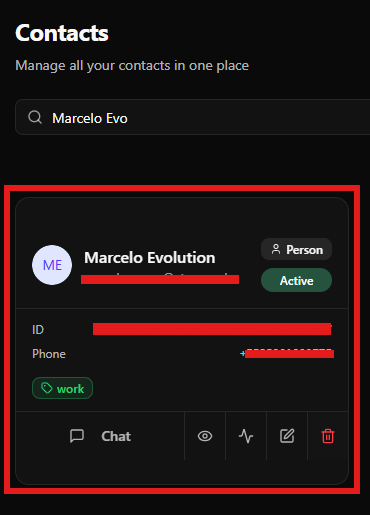
- Start Conversation: Starts a new conversation with the selected contact.
- View Details: Opens the complete contact profile.
- Activity / Events: Displays indicators related to interactions (if available).
- Edit Contact: Opens the contact edit form.
- Delete Contact: Permanently removes the contact from the system.
Starting a Conversation
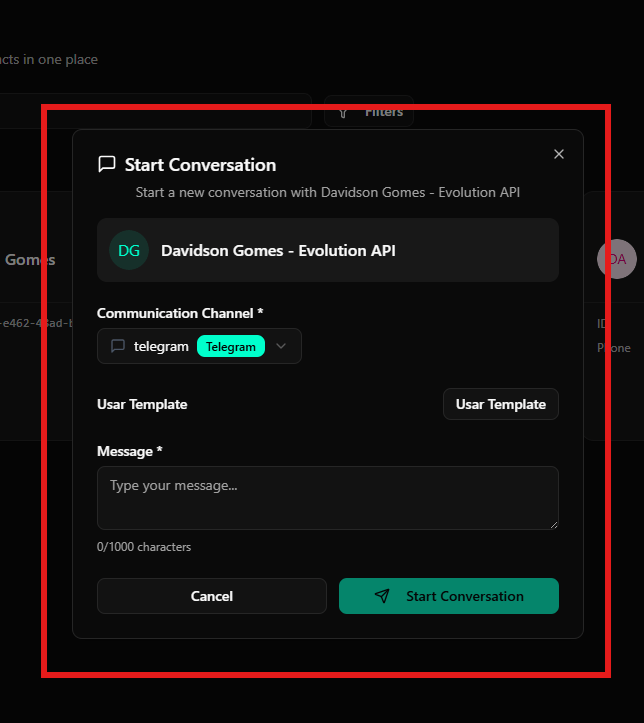
To start a conversation with a contact, click the Chat icon available on the contact card.Conversation settings include:
- Communication Channel: Select the channel (e.g., Telegram).
- Template Selector: Optionally, use a predefined message template.
- Message Field: Type the initial message to start the conversation.
Viewing Contact Details
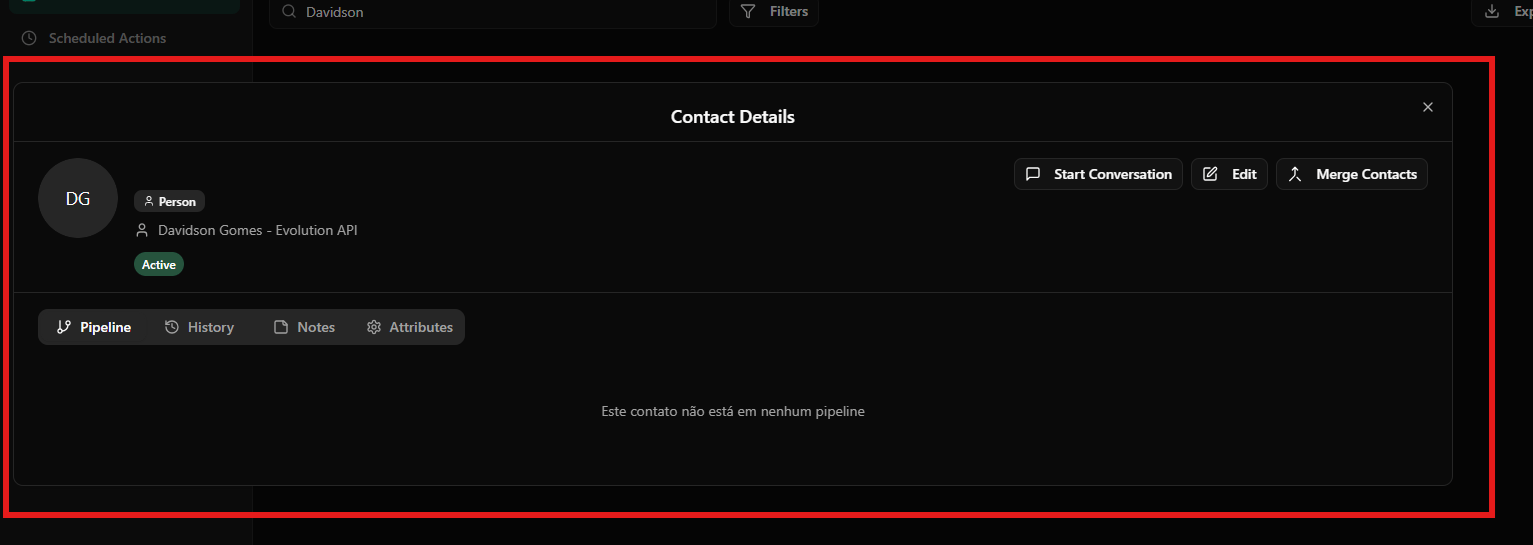
Clicking View Details opens the complete contact profile.Header actions:
- Start Conversation: Quickly start a new chat.
- Edit: Modify contact information.
- Merge Contacts: Combine duplicate contacts into a single profile.
Profile sections:
- Pipeline: Shows if the contact is associated with any pipeline.
- History: Displays past interactions and activities.
- Notes: Allows adding internal notes about the contact.
- Attributes: Shows custom attributes linked to the contact.
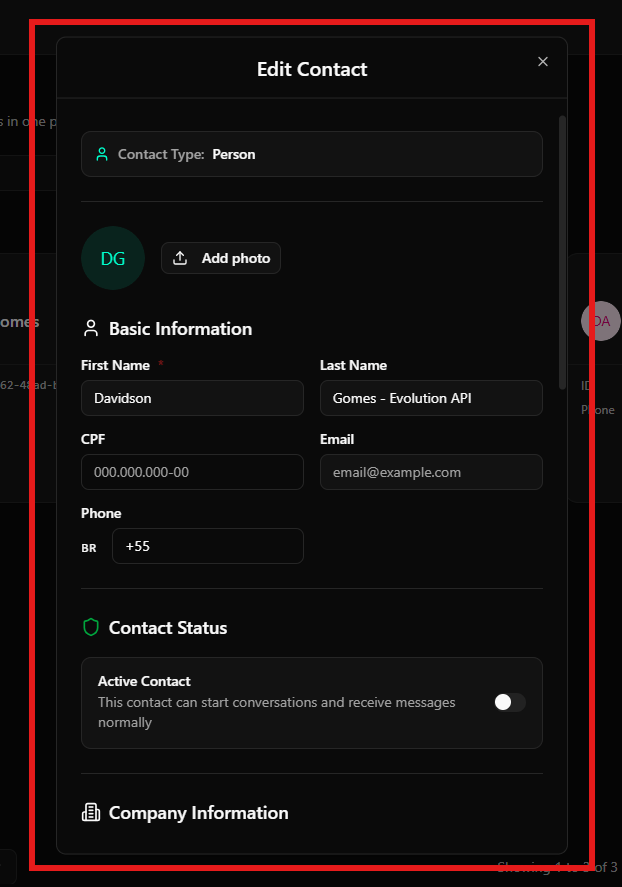
Editing a Contact
To update contact information, click Edit in the contact profile.Editable sections include:
Basic Information
- Name
- Last Name
- CPF
- Phone
- Profile photo
Contact Status
- Enable or disable the contact to control communication availability.
Company Information
- Link the contact to existing companies.
Advanced Contact Details
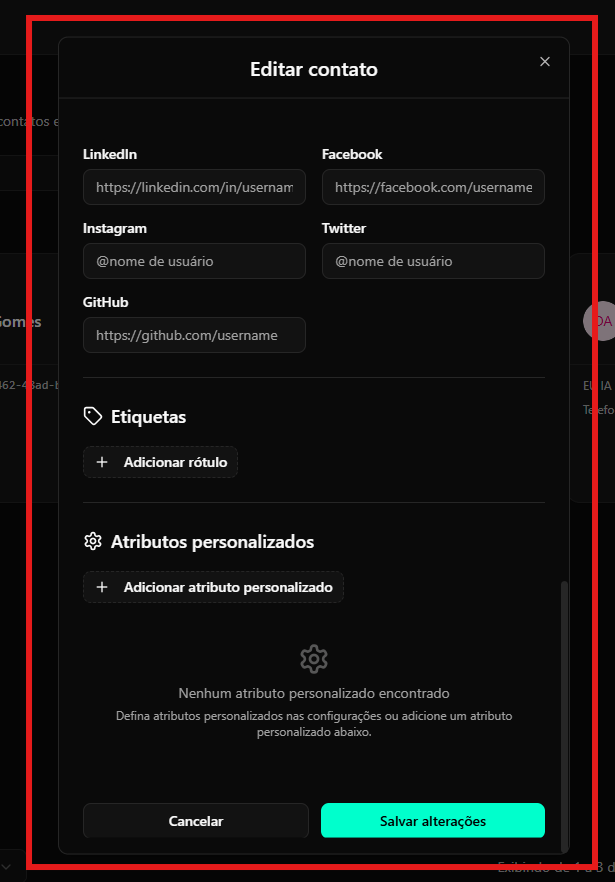
Scrolling further down the edit screen, you’ll find additional customization options.Available fields:
Social Links
- GitHub
Labels
- Add tags to organize and categorize contacts.
Custom Attributes
- Add custom fields to store additional contact-specific data.
- Attributes can be configured globally or added directly when editing the contact.