

Accessing Conversations
To access the conversations area:- In the left sidebar menu, click Conversations
- The main screen will be displayed with the list of all active conversations
Conversations Main Interface
The conversations screen is divided into two main areas: the conversation list on the left and the selected conversation viewing area on the right.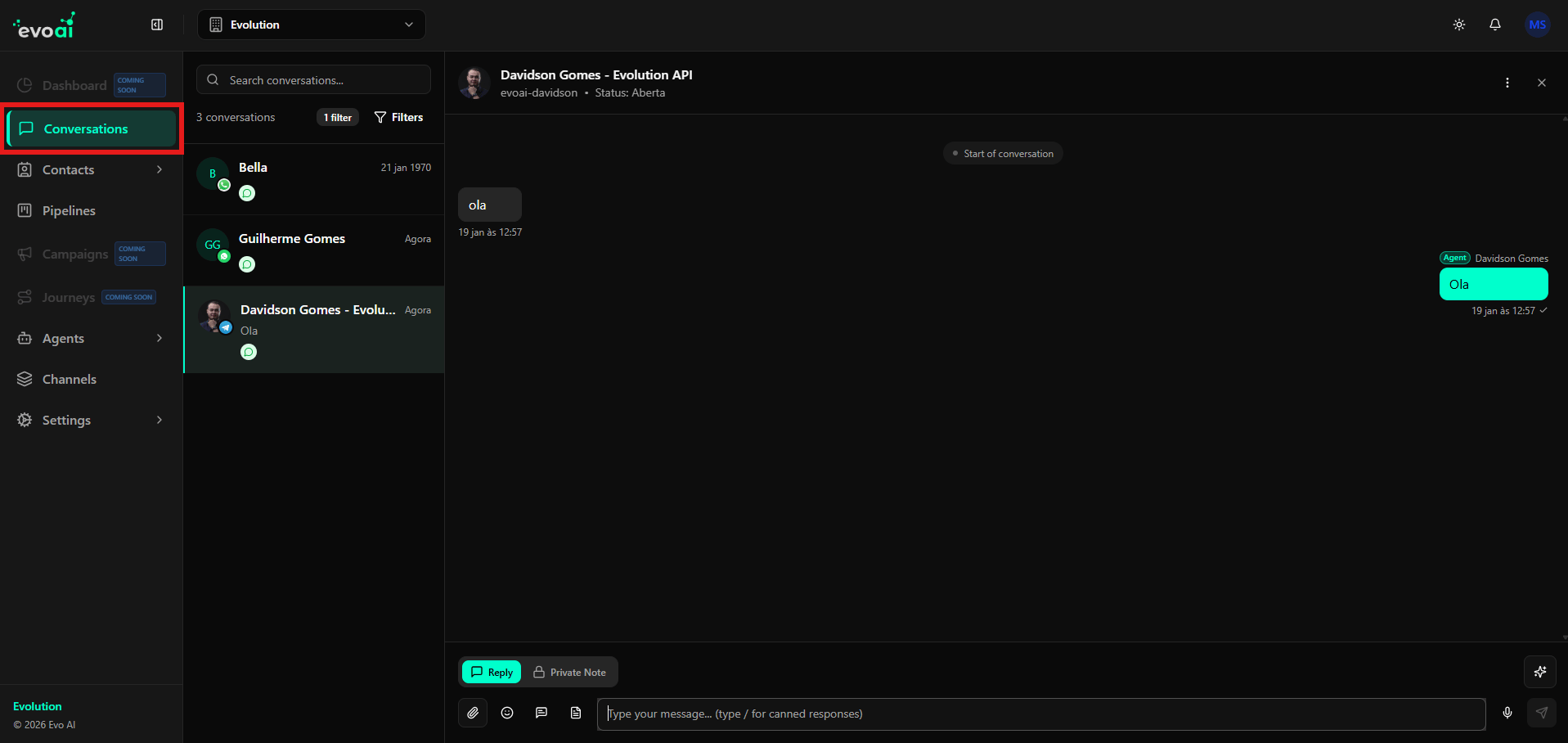
Interface Structure
The main interface presents:Conversation List Area
The left column displays all available conversations:- Search Bar: Field at the top to search for specific conversations
- Conversation Counter: Displays the total number of conversations found (e.g., “3 conversations”)
- Filter Indicator: Shows how many filters are active (e.g., “1 filter”)
- Filters Button: Allows applying and managing filters
- Contact Avatar: Profile photo or name initial
- Contact Name: Customer’s full name
- Communication Channel: Icon indicating the channel (Telegram, WhatsApp, Email, etc.)
- Timestamp: Date and time of the last message (e.g., “Now”, “21 Jan 1970”)
- Message Preview: Last message exchanged in the conversation
- Status Indicators: Icons indicating conversation or channel status
Conversation Viewing Area
The right column shows the selected conversation:-
Conversation Header:
- Contact name and channel (e.g., “Davidson Gomes - Evolution API”)
- Unique identifier (e.g., “evoai-davidson”)
- Conversation status (e.g., “Status: Open” or “Status: Pending”)
- Action buttons (three-dot menu, close)
-
Message History:
- Received messages appear on the left
- Sent messages appear on the right with agent name
- Timestamps for each message
- Read/delivery indicators
-
Composition Area:
- Tabs for Reply (Reply) and Private Note (Private Note)
- Text field for typing messages
- Icons for attachments, emojis, mentions, and quick response templates
- Send button
Search and Filters
The search bar and filters are essential tools for quickly locating specific conversations.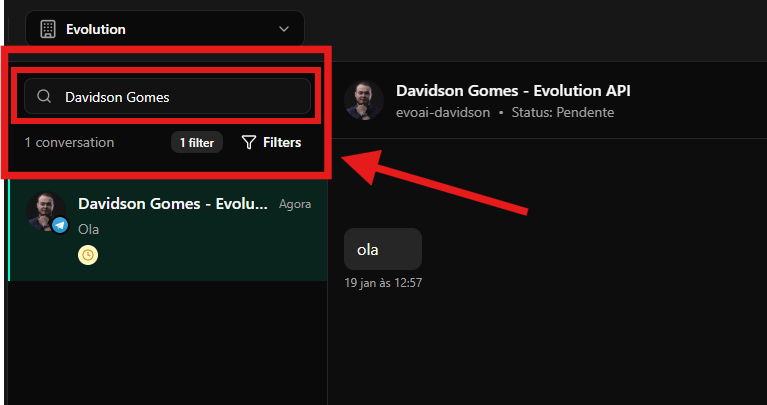
Search Bar
At the top of the conversation list, you find:- Search Field: With placeholder “Search conversations…”
- Magnifying Glass Icon: Indicates the search functionality
- Functionality: Allows searching conversations by contact name, keywords, or message content
- Click on the search field
- Type the contact name or keyword (e.g., “Davidson Gomes”)
- The list will be automatically filtered showing only matching conversations
- The counter will be updated (e.g., “1 conversation”)
Counter and Filters
Below the search bar:-
Conversation Counter: Displays the total number of conversations found after applying search and filters
- Example: “1 conversation” or “3 conversations”
-
Active Filters Indicator: Shows how many filters are applied
- Example: “1 filter” indicates that there is one active filter
- Filters Button: With funnel icon, allows opening the filter configuration modal
Filtered Conversation List
When search or filters are applied, the list displays only matching conversations:- Avatar and Name: Profile photo and contact name
- Channel Icon: Small icon overlaid on the avatar indicating the channel (e.g., blue paper airplane icon for Telegram)
- Timestamp: “Now” for recent conversations or specific date/time
- Message Preview: Last message exchanged
- Status Indicators: Icons that may indicate:
- Conversation status (pending, open, resolved)
- Business hours (yellow clock icon)
- Priority or other states
Configuring Conversation Filters
The system allows applying multiple filters to refine the conversation view.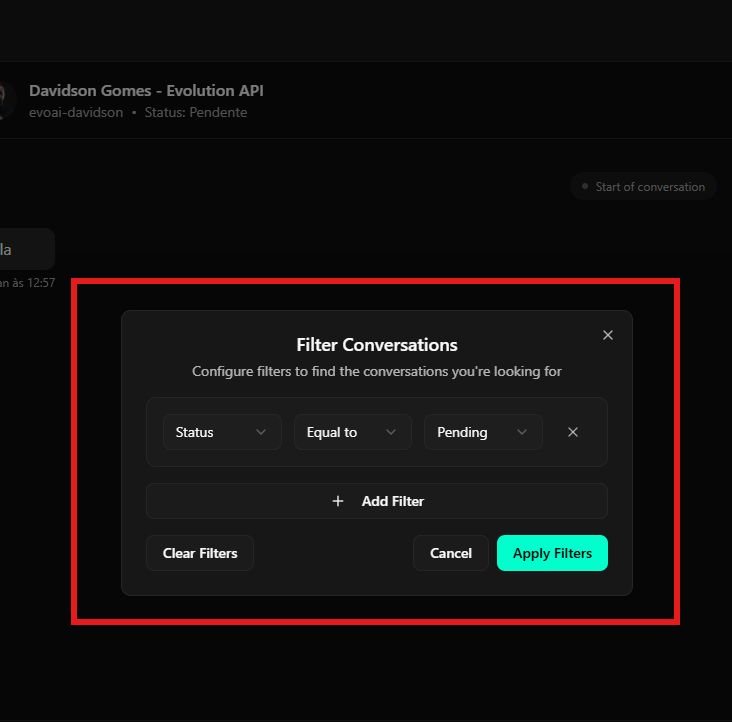
Accessing the Filters Modal
To open the filters modal:- Click the Filters button at the top of the conversation list
- The Filter Conversations modal will be displayed
Filters Modal Structure
The modal presents:Title and Description
- Title: “Filter Conversations”
- Description: “Configure filters to find the conversations you’re looking for”
- Close Button: “X” icon in the upper right corner
Configured Filters
The main area displays already applied filters: Example of Active Filter:- Field 1 - Filter Type: Dropdown with options such as “Status”, “Agent”, “Channel”, “Labels”, etc.
- Field 2 - Operator: Dropdown with operators such as:
- “Equal to”
- “Not equal to”
- “Contains”
- “Does not contain”
- Field 3 - Value: Dropdown or text field with the specific value (e.g., “Pending”)
- Remove Button: “X” icon on the right to remove the individual filter
- Filter: Status = Equal to = Pending
- Result: Shows only conversations with “Pending” status
Add New Filter
- “Add Filter” Button: With ”+” icon in the center of the modal
- Functionality: Allows adding multiple filtering criteria
- Usage: Click to add a new filter row
Action Buttons
At the bottom of the modal:- Clear Filters: Removes all applied filters
- Cancel: Closes the modal without applying changes
- Apply Filters: Green button that applies the configured filters and updates the list
Available Filter Types
Filters can be applied by:- Status: Pending, Open, Resolved, Closed
- Agent: Filter by assigned agent
- Channel: WhatsApp, Email, Telegram, Facebook, Instagram, SMS, API, Website Widget
- Labels: Filter by applied labels
- Date: Creation period or last update
- Priority: Conversation priority level
Final Considerations
- The conversations interface was designed for intuitive navigation and interaction
- Search allows quickly locating conversations by name or content
- Filters help organize and manage large volumes of conversations
- The distinction between public replies and private notes is fundamental for internal team communication
- All messages are synchronized in real-time between all agents
- Conversation status can be changed directly in the interface
- Each communication channel has specific icons and indicators for easy identification